01 /
Know where students stand.
Bring student profiles and assessment results into one workspace. Understand the cohort, then look closer at each student.
Student profiles / Cohort visibilityFOR THE PEOPLE BEHIND STUDENT FUTURES
Bring departments, student groups, question banks, and assessments into one campus workspace. Understand readiness, review the evidence, and give every next step a clearer direction.
Standard proctoring. Now on mobile.Illustrative workspaces · Select a view to explore
Less coordination between tools. More clarity between teams.
THE BIG PICTURE
When student profiles, assessment evidence, and placement activity live together, your team can focus on moving students forward.
Bring student profiles and assessment results into one workspace. Understand the cohort, then look closer at each student.
Student profiles / Cohort visibilityBuild multi-section assessments across aptitude, technical, and written skills. Move from a single score to a fuller picture.
Multi-section tests / Skills evidenceOrganize placement drives with a clear view of students and their readiness. Keep faculty and placement teams working together.
Placement drives / Team coordinationCAMPUS ASSESSMENTS, NOW ON MOBILE
Run mobile-enabled assessments with Standard proctoring. Students can join, answer, review, and submit from their phone—so supported assessments can happen without a computer lab.
Enable mobile delivery for a compatible assessment and share the invitation code.
Use the configured camera, microphone, and app-exit checks with assessment evidence available for review.
Mobile attempts connect to your assessment results, individual reports, and available evidence.
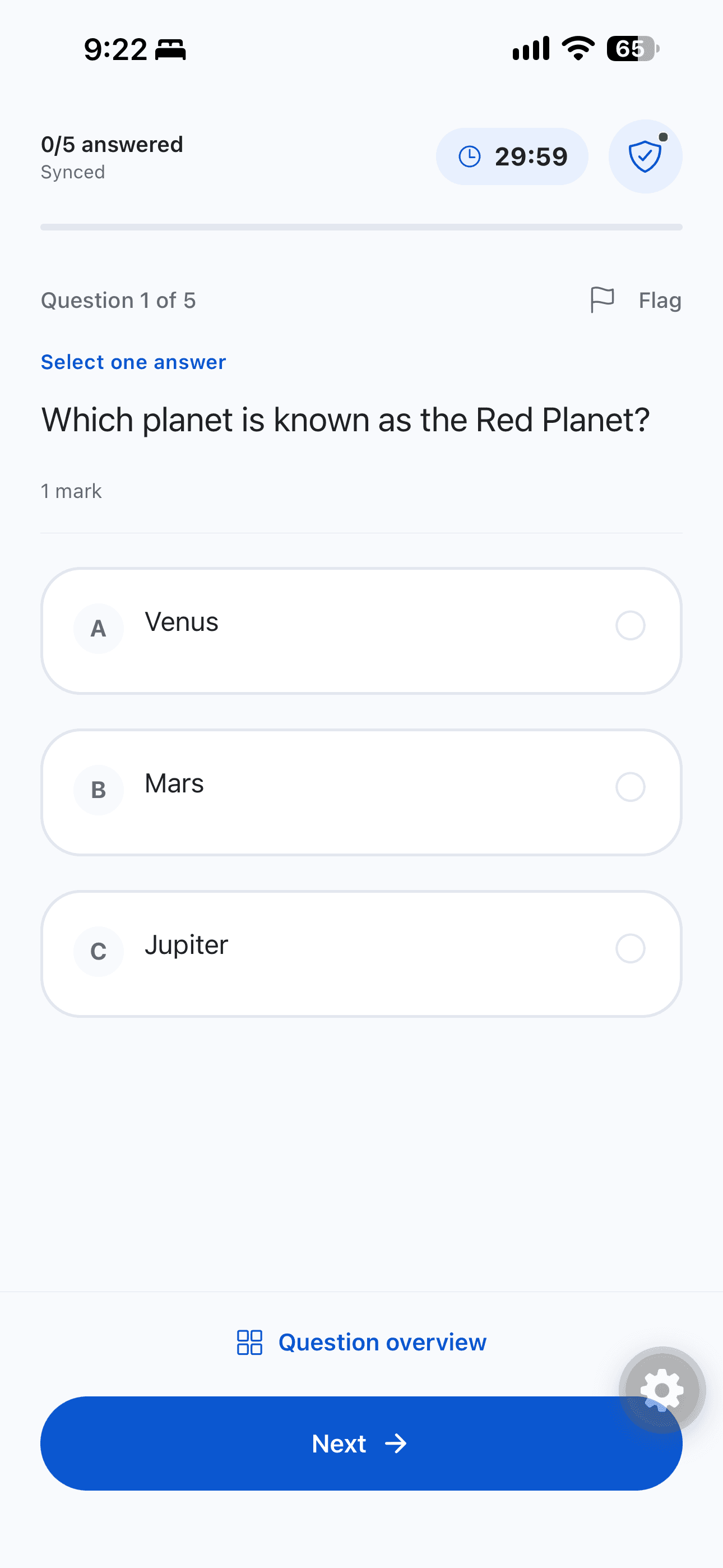
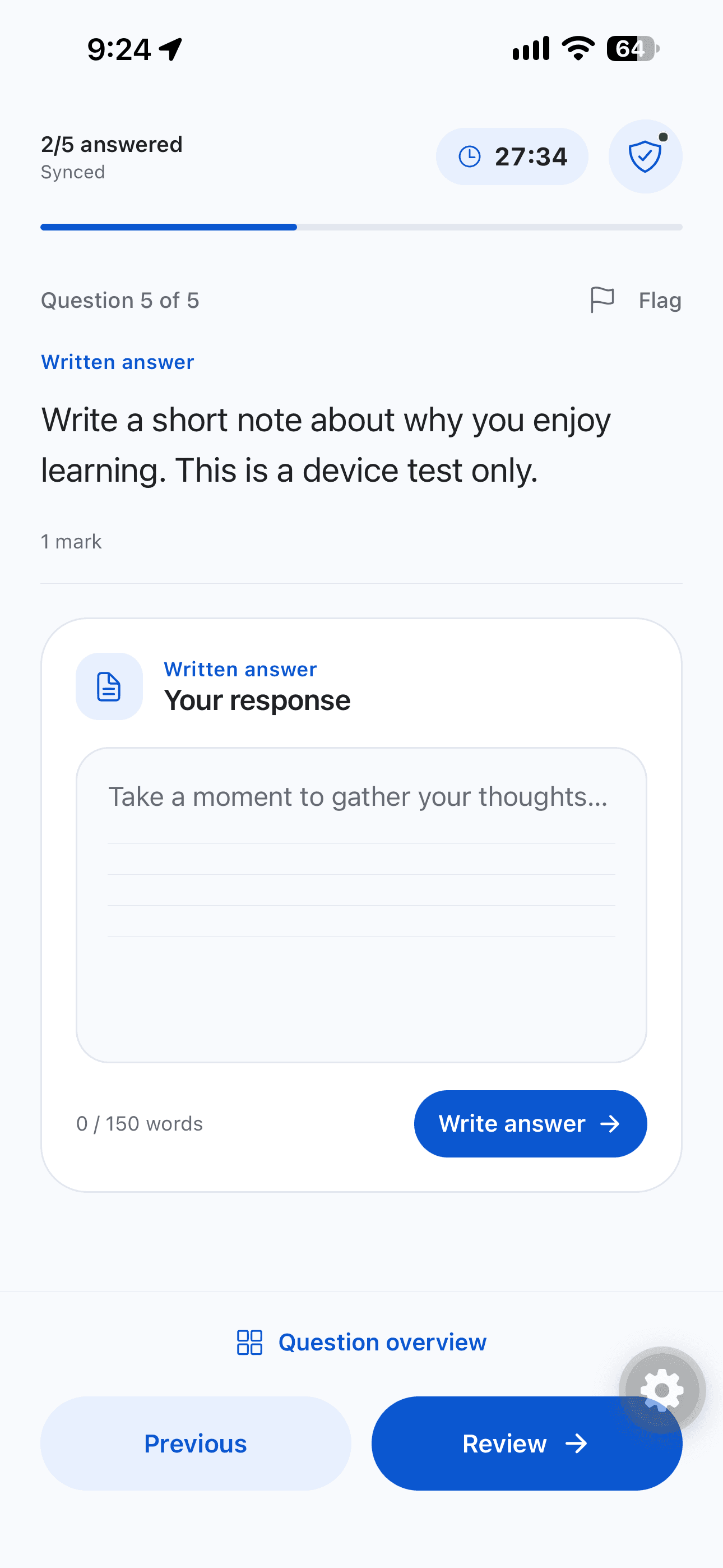
Clear answer choices, a visible timer, and a question overview keep the assessment easy to follow on a smaller screen.
For coding and other desktop-only formats, use a computer. Your team chooses mobile delivery when setting up the assessment.
THE PLATFORM, UP CLOSE
From the first roster import to the final assessment review, Campus brings the work into one connected flow. Explore what your team can do at every stage.
01Departments & faculty
Set up departments, assign HODs and faculty, and give your team access that matches their responsibility. Administrators see the institution; faculty work within their allotted department.
HOD + faculty coordinators
HOD + faculty coordinators
HOD + faculty coordinators
A shared structure, with access that follows each person’s responsibility.
An illustrative look inside Edgeryt Campus. Example data shown.
02Student directory & imports
Add students individually or import Excel and CSV rosters. Bring roll numbers, departments, and academic details into student profiles so your team can work from the same records.
| Student | Department | Status |
|---|---|---|
AS Ananya S.CS104 · Final year | Computer Science | Ready |
RV Rahul V.EC088 · Final year | Electronics | Invited |
SR Sneha R.IT091 · Final year | Information Technology | Ready |
AK Arjun K.ME052 · Final year | Mechanical | Ready |
An illustrative look inside Edgeryt Campus. Example data shown.
03Groups & assessment audiences
Organize students into groups for placement rounds and other campus assessment needs. Attach an assessment to its group to keep the audience and the work connected.
Students from across your institution
An illustrative look inside Edgeryt Campus. Example data shown.
04Question bank & library
Browse the curated library by bank, topic, or question. Copy available library content into your workspace, edit it for your syllabus, and combine it with questions authored or imported by your faculty.
An illustrative look inside Edgeryt Campus. Example data shown.
05Multi-section assessment builder
Compose sections by skill, question format, and difficulty. Draw from question banks, hand-pick a fixed set, or generate an AI-assisted draft to review before publishing.
Illustrative configuration · Choose the skills, formats, and timing for your assessment.
An illustrative look inside Edgeryt Campus. Example data shown.
06Scoring & evaluation
Configure passing scores, attempts, section weights, and result visibility. Objective questions and coding tests support automatic grading; reviewer-graded sections stay pending until review. Eligible plans also support AI marking for short and long written answers.
Set for this assessment
Objective and coding grading, reviewer workflows, and plan-dependent AI written marking.
An illustrative look inside Edgeryt Campus. Example data shown.
07Configurable proctoring
Bring browser, camera, microphone, identity, and screen controls into your campus assessments. Start with a monitoring preset or configure individual checks, then use session evidence to understand flagged attempts before making a decision.
Controls and available evidence depend on the selected preset and configuration.
An illustrative look inside Edgeryt Campus. Example data shown.
08Invitations, results & reporting
Preview the student experience before publishing, manage assessment invitations, and follow participation from the assessment workspace. Review completion, average scores, pass rates, time taken, and flagged attempts without piecing together separate tools.
An illustrative look inside Edgeryt Campus. Example data shown.
A WORKFLOW YOUR WHOLE CAMPUS CAN FOLLOW
Five connected stages. Explore how the work moves between your people, assessments, and evidence.
Create your department structure, invite faculty, and bring student rosters into the directory. Your institution starts with a shared foundation.
HOD + faculty coordinators
HOD + faculty coordinators
HOD + faculty coordinators
A shared structure, with access that follows each person’s responsibility.
BUILT AROUND THE PEOPLE DOING THE WORK
Explore what Campus brings to your part of the institution.
SEE THE COHORT. COORDINATE THE DRIVE.
Bring students from different departments into purpose-based groups. Run readiness assessments, follow participation, and review the evidence before planning the next placement step.
Students from across your institution
A LITTLE MORE CLARITY
Yes. Enable mobile delivery for a compatible Campus assessment. Students can join by code, complete MCQ, multi-select, true/false, short-answer, and long-answer questions, review their answers, and submit from the mobile app. Standard proctoring is supported according to the assessment’s configured policy. Coding and other desktop-only question formats need a computer.
Yes. Import Excel or CSV student rosters and use the question import tools to bring faculty content into your own banks. Validate the imported content before using it in an assessment.
Yes. Build multi-section assessments with formats such as MCQ, coding, numerical, and written responses. Configure section timing and scoring to suit the skills you want to measure.
Choose a monitoring preset or configure individual browser, identity, camera, microphone, and screen controls. Review available evidence alongside student responses; a flag is a prompt for review.
Feature access depends on your Campus plan. For example, AI written marking is available on eligible plans. Ask for a demo to confirm the setup for your institution.
Campus is built for placement teams, faculty, and institutional leaders who manage student readiness, assessments, and placement drives.
Campus has its own institution-focused workspace. Edgeryt Hire is a separate product for companies managing their hiring process.
Yes. Use “Let’s talk” to request a guided demo and discuss your institution’s workflow.
A better next chapter
Let’s build a connected assessment and placement journey for your institution.